In 2026, a slow website isn’t just a nuisance—it’s a revenue killer. If your pages take more than 2 seconds to load, Google AdSense will serve fewer ads, and your search rankings will drop. The #1 cause of slow loading times? Unoptimized images.
Most bloggers upload high-resolution photos directly from their phones or cameras, often exceeding 5MB to 10MB per file. This guide explores how to use the ImageTight engine to compress those files by up to 98% while keeping them crystal clear.
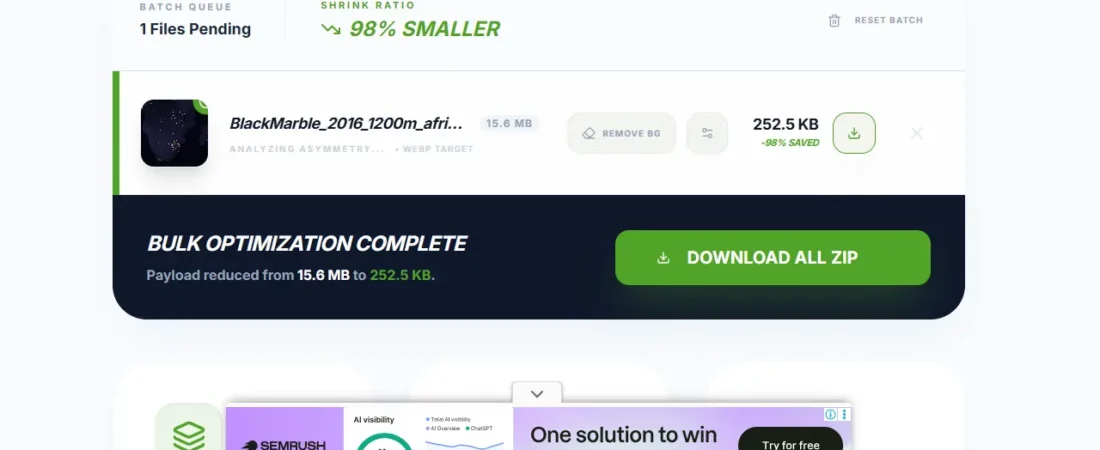
The Proof: 15.6MB to 252KB
At Tabaix, we believe in data-driven results. In our latest stress test, we processed a high-definition 4K asset:
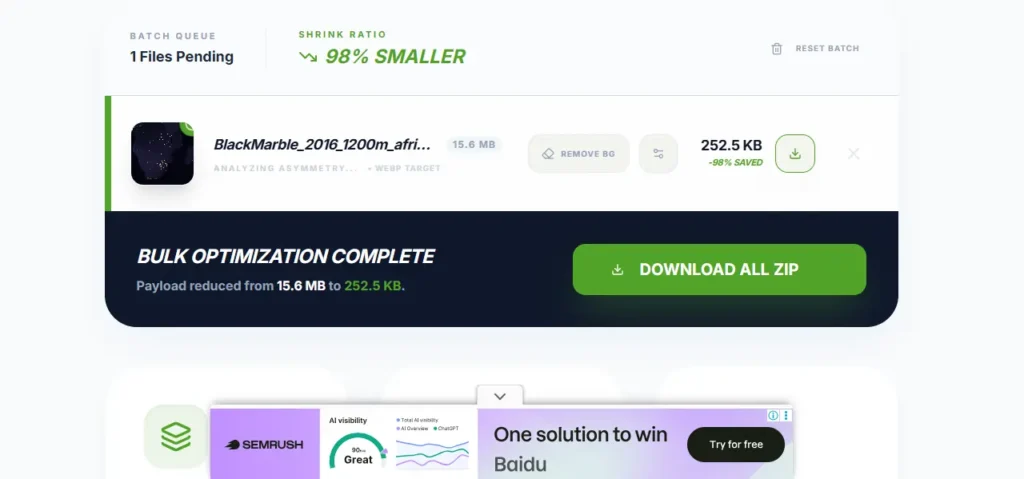
- Original File Size: 15.6 MB
- ImageTight Optimized Size: 252.5 KB
- Space Saved: 98.4%
- Visual Quality: Identical to the human eye.
Step-by-Step Tutorial: Optimizing Your Media Library
1. Integration via the ImageTight Plugin
To start, you need the bridge between your server and our compression engine.
- Download the ImageTight WordPress Plugin from our official repository.
- Upload it via Plugins > Add New and activate it.
- Enter your API key (available for free in your Tabaix dashboard).
2. Running a Global Library Scan
Unlike traditional plugins that charge you to process more than 50 images, ImageTight is built for scale.
- Navigate to the Bulk Optimizer tab.
- Click “Scan Media Library”. Our tool will index every JPEG, PNG, and GIF.
- Review the “Potential Savings” report to see exactly how much server space you will recover.
3. Advanced Settings: WebP and Beyond
To achieve an LCP (Largest Contentful Paint) of 0.3s, you must use next-gen formats.
- Enable WebP Conversion: This converts heavy JPEGs into WebP files, which are 30% lighter.
- Set Max Dimensions: Automatically resize 4000px images down to a web-friendly 1920px.
- Strip Metadata: Remove hidden GPS and camera data from images to shave off extra Kilobytes.
4. The “One-Click” Optimization
Once your settings are dialed in, hit “Optimize All”. The process runs in the background using our unique local browser-based technology, meaning your server resources aren’t taxed, and your site stays fast for visitors while the work is being done.
Frequently Asked Questions (FAQ)
Ans: No, it will improve it! Google uses “Core Web Vitals” as a ranking factor. Faster images lead to better scores, which leads to higher rankings.
Ans: Absolutely. WebP provides superior lossless and lossy compression for images on the web. It is supported by all modern browsers in 2026.
Ans: Yes. ImageTight creates a “Smart Backup” of your original files before the first compression, allowing you to revert with a single click.
Ans: Our tool is designed for bulk. You can process 1,000+ images in a single session without the browser crashing, thanks to our local-processing engine.
Conclusion: Don’t Let Heavy Images Hold You Back
Building a successful blog on tabaix.com requires more than just good writing; it requires a professional technical foundation. By following this tutorial, you are telling Google that your site is fast, modern, and ready for high-value ads.
Ready to transform your site speed?
Start Compressing Now with ImageTight
Secondary Keywords: ImageTight tutorial, reduce image size without losing quality, WordPress speed optimization 2026, WebP conversion guide.